The full closing sequence after the BA — enrollment, DS comp email, payment date, bank info, QA, contract signing, submit, and transfer to Cordoba.
-
Enrollment plan
- Click Enrollment (purple bar).
- Select plan account CORDOBA, select base plan CORDOBA.
- Program length: LONGEST TERM MONTHS.
- Click SAVE ENROLLMENT PLAN.

① Plan account Cordoba Legal Group · ② base plan Cordoba Plan · ③ program length (longest term) · then ④ Save Enrollment Plan (top purple bar). Client name hidden. -
DS Comp email — program explanation — loan pivot
- Click Emails (grey button).
- Click Send email (far right).
- Select template ENGLISH DS COMPARISON.
- Scroll down and go over the RED and GREEN numbers, and SELL and EXPLAIN the benefits of the service.
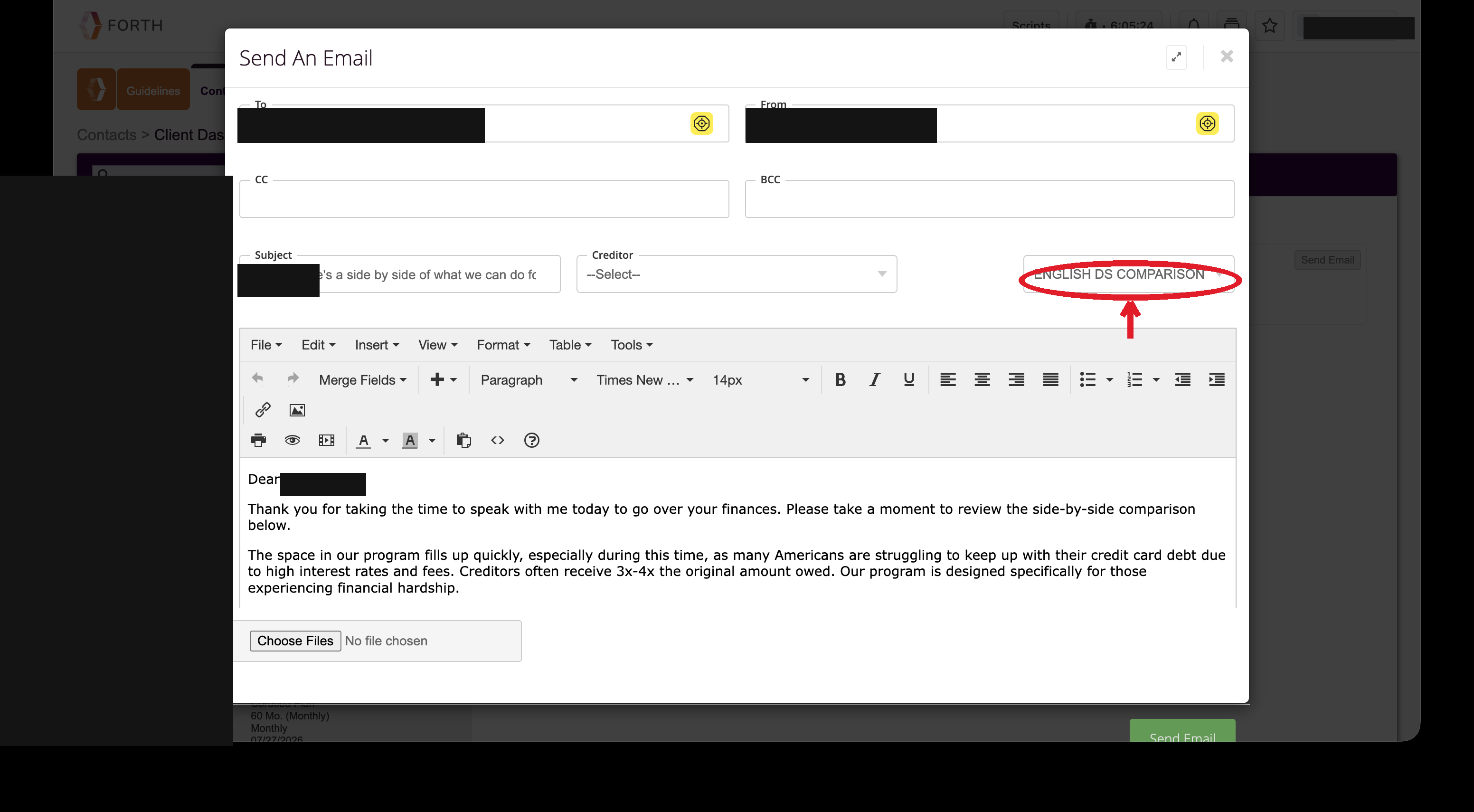
In Send Email, pick the ENGLISH DS COMPARISON template (top‑right, circled), then scroll the email and go over the RED & GREEN numbers. Client name/email hidden. -
First payment date
- Click Edit enrollment plan.
- Go to the calendar and choose the first payment date and the recurring payment date — both the same date.
- Click SAVE ENROLLMENT PLAN.

① Click the First Payment Date calendar and pick the date — set the Recurring Start Date just below it to the same date — then ② Save Enrollment Plan. Client name hidden. -
Bank info
- Enter the routing number and click on the bank it gives you.
- Enter the account number and select checking.
- Click SAVE BANK.
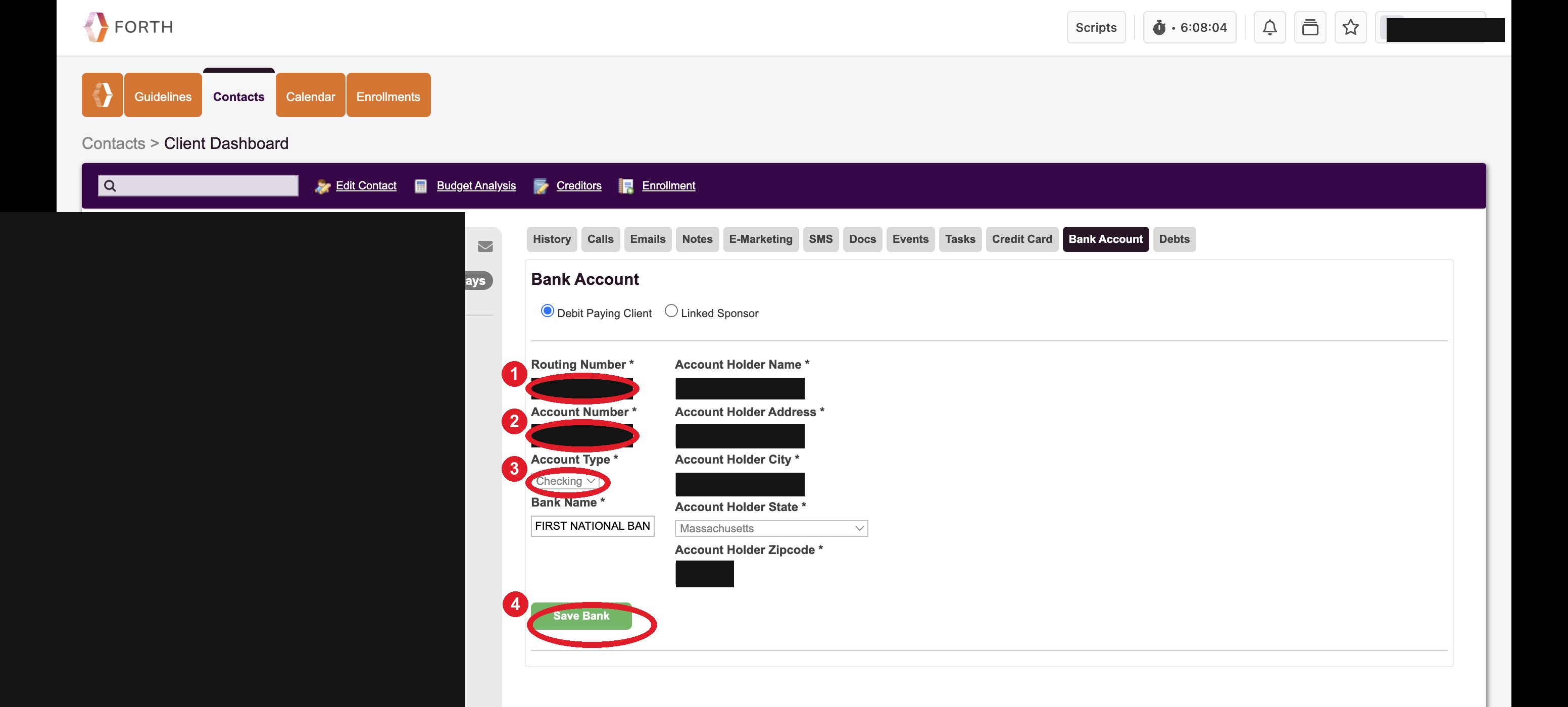
① Routing number · ② account number · ③ Account Type Checking · ④ Save Bank. Routing/account numbers, name & address hidden. -
Check spelling and send to closers QA
- Check spelling, fill out employer, and write the hardship info paragraph.
- Once all is perfect, copy and paste the Forth link into the closers collective chat and tag Sierra.
@Siera qc MLSR-1228592356Type the real deal number over MLSR‑…, then hit Copy and paste it in the chat.
-
Send contract and walk through signing
- Click DOCS (grey button).
- Click CIXSIGN DOCS (middle page).
- Click Generate Documents.
- Click package.
- Select package English Cordoba.
- Click Send Via SMS.
- Click Send for signature (bottom right).
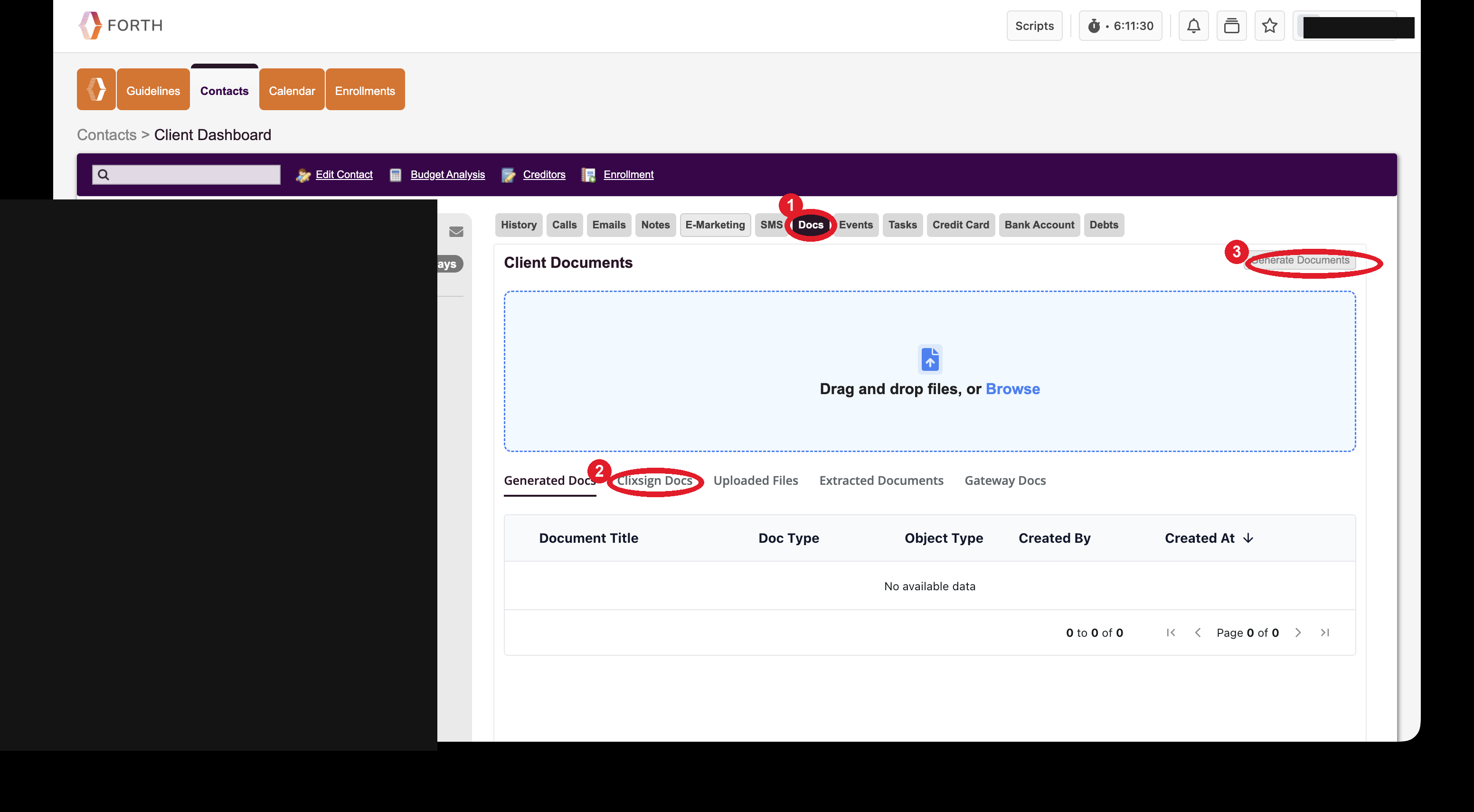
① DOCS tab · ② Clixsign Docs · ③ Generate Documents — then pick the English Cordoba package and Send for signature. Client info hidden. -
Walk through client signing
Read this to walk the client through signing on their phone (Clixsign):
-
Submit file
Once the contract is signed, click Enrollment and click SUBMIT FILE.
-
Welcome Call prep — get the client ready
Read this so the client answers Cordoba's questions correctly — clear YES / NO answers, and have their routing & account number handy:
-
Hand off — transfer to Cordoba
Warm-transfer the client to Cordoba, introduce them, then let Cordoba finish the welcome call. Follow your Cordoba transfer instructions.
✅ That's the close. The client is enrolled, signed, file submitted, and handed off to Cordoba for the welcome call.